Connecting a Siemens SINUMERIK Machine
Direct Machine Connection reads cycle and program data straight from the control over the network, instead of relying only on the current transducer clamped around the spindle phase. Siemens SINUMERIK controls (828D and 840D sl running SINUMERIK Operate) do this with OPC UA — a standard, vendor-neutral industrial protocol. The control runs an OPC UA server that publishes its data, and your T-Connect device connects to it as a client and reads the values it needs.
This uses the same T-Connect device from your installation — there's no extra hardware to fit. You're just cabling the device into the control and pointing it at the control's OPC UA server, alongside reading the current clamp.
Over OPC UA, TrackMyMachines reads the program status and name, the part counter, feed and spindle overrides, the active tool number and any active alarms.
The screenshots in this guide are from an 840D sl. Menu names and key positions can vary slightly between SINUMERIK Operate versions and on the 828D, but the fields are the same.
Before you start
- Your T-Connect device is already installed and provisioned onto your WiFi network — see the Installation Guide if it isn't yet — and the machine exists in TrackMyMachines (see Adding a machine).
- You (or your maintenance engineer) can log in to the control at the Manufacturer access level. The settings below aren't available at lower levels.
- The Access MyMachine / OPC UA option (
6FC5800-0AP67-0YB0) is enabled on the control. Check it under Commissioning → Licenses → All options — see below. - A straight Ethernet cable long enough to run from the control's X130 port to where the T-Connect device is mounted.
- The OPC UA password for your T-Connect device. This is issued by TMM support — email support@trackmymachines.com before you start. It isn't shown anywhere in the portal.
Checking the OPC UA licence
On the Licensing: All options screen, find Access MyMachine /OPC UA. The Set column must be ticked. If Licensed is also ticked, you're done.
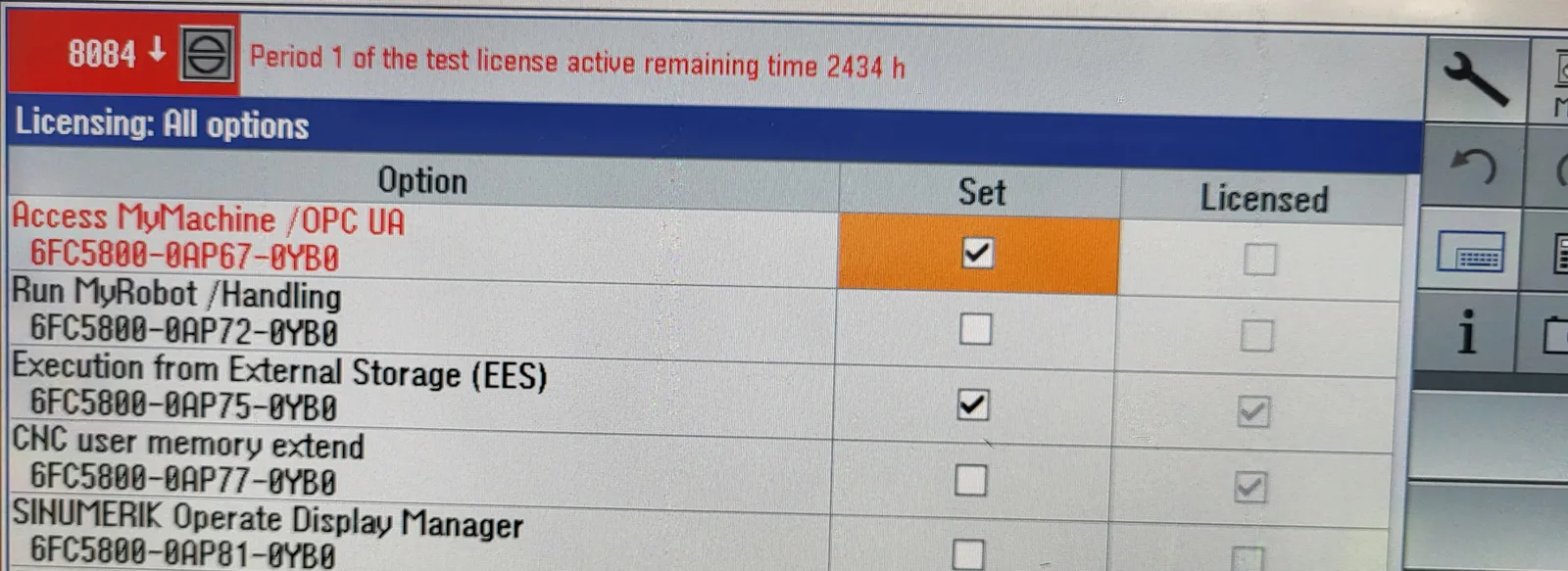
If Set is ticked but Licensed isn't, the control is using a time-limited test licence and shows alarm 8084 ("test license active, remaining time … h"). OPC UA works for now, but buy the licence from your Siemens dealer or machine builder before the test period runs out.
Step 1: Set the X130 IP address
-
Open Commissioning → Network. The Network settings overview lists the control's three Ethernet ports: X120 (systems network), X130 (company network) and X127 (service network).
-
Press Change and set the X130 Company network row:
Field Value DHCP client (unticked) IP address 192.168.0.1Subnet mask 255.255.0.0 -
Press OK.
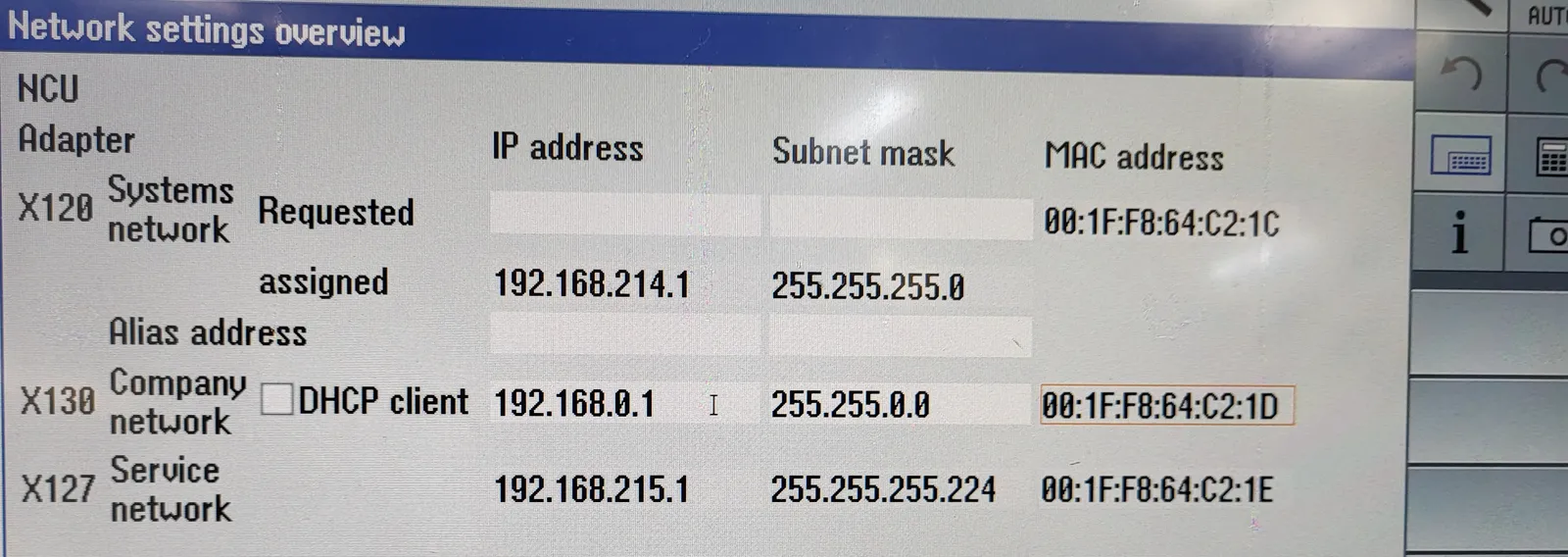
192.168.0.1 / 255.255.0.0. Leave X120 and X127 as they are.- Still under Commissioning → Network, press Company network and
press Change. Under Firewall exceptions, add
TCP/4840to Additional ports. Leave Gateway, DNS server and Timeserver blank, and press OK. - Restart the control so the new address and firewall settings take effect — a soft restart is enough.
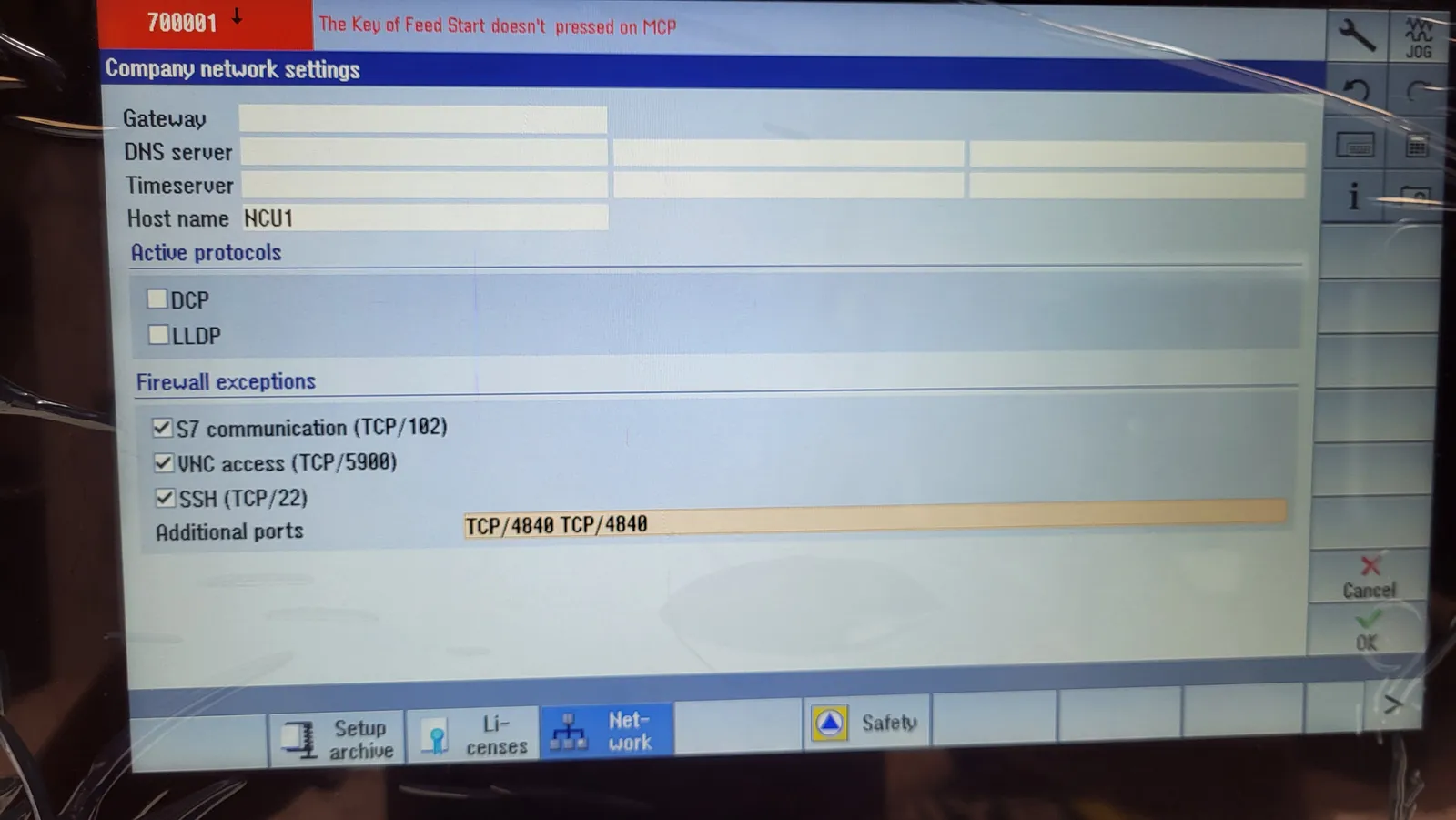
TCP/4840 under Additional ports lets the T-Connect device reach the OPC UA server through X130. One entry is enough.X130 is cabled directly to the T-Connect device in this setup, so these addresses don't need to fit your shop network. If X130 is already connected to your shop network for another reason (e.g. a DNC system), talk to support before changing anything — the addresses in this guide will need adjusting.
Step 2: Enable OPC UA on the company network
-
From Commissioning → Network, press OPC UA, then Setting.
-
On the Settings of the OPC UA Server screen, set:
Field Value Company network (ticked) — this should now show 192.168.0.1TCP port 4840Message encryption: None (unticked) Message encryption: 128 bit (Basic128Rsa15) (unticked) Message encryption: 256 bit (Basic256, Basic256Sha256) (ticked) Activate OPC UA (ticked) -
Press OK.
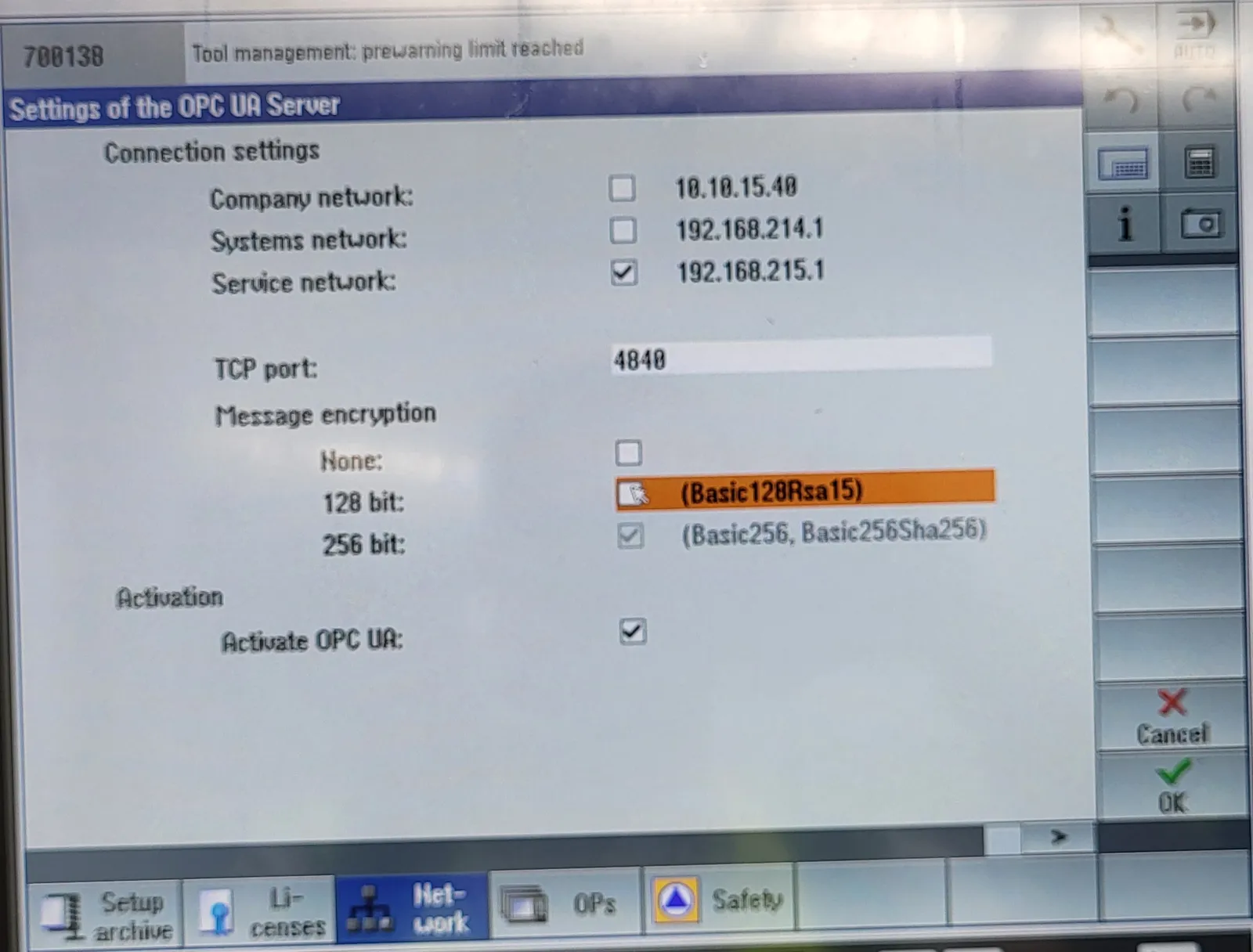
The T-Connect device connects with Basic256Sha256 from the 256-bit group, signed and encrypted. Basic128Rsa15 isn't supported, so the 128-bit option isn't needed.
Step 3: Set the OpcUaClient password and read rights
The T-Connect device always logs in as OpcUaClient — this can't be
changed from the portal.
- From the OPC UA screen, press Authentication.
- Set the password for the
OpcUaClientuser to the value TMM support gave you. - Make sure
OpcUaClienthas read rights for NC state and alarms. Without them, the T-Connect device connects and logs in but every value reads back as BadUserAccessDenied — the machine shows as connected in TrackMyMachines but no cycle data appears. - Press OK.
Step 4: Cable the T-Connect device into X130
Run the Ethernet cable from the control's X130 port (the company network port on the NCU) to the Ethernet port on the T-Connect device.
Don't use X127 — that's the service network port for commissioning laptops and has a fixed address of its own.
The T-Connect device talks to the control over this cable and to the TrackMyMachines cloud over WiFi — the Ethernet port is used only for the control. Check that the device still has a usable WiFi signal where it's mounted: steel electrical cabinets often block it, so mount the device outside the cabinet or near the door if you can.
Step 5: Configure the machine in TrackMyMachines
-
Go to Manage → Machines and open the machine (or create it first — see Adding a machine).
-
Under Advanced Settings, open Machine connection options.
-
Set:
- Direct machine connection type:
Siemens - Machine URL:
opc.tcp://192.168.0.1:4840(the X130 address from Step 1 and the OPC UA port from Step 2)
- Direct machine connection type:
-
Set the T-Connect device's own network interface so it sits on the same static link as the control. These fields describe the T-Connect device, not the SINUMERIK control:
Field Value Static IP 192.168.0.2Subnet Mask 255.255.0.0Default Gateway 192.168.0.2 -
Click Update Machine.
Once saved, the change is pushed out to your T-Connect device automatically — no need to restart anything on the machine or the device.
Step 6: Trust the T-Connect certificate on the control
The first connection attempt will be rejected — this is expected. The TMM Connect device presents its own certificate when it connects, and the SINUMERIK refuses certificates it hasn't seen before. Until you trust it, the device keeps failing with BadSecurityChecksFailed, which looks a lot like a wrong password. Nothing needs to be installed on the T-Connect device itself — it accepts the control's certificate automatically.
- Wait a minute or two after saving in Step 5 so the T-Connect device has tried to connect at least once.
- On the control, go to Commissioning → Network → OPC UA and press Certificates.
- Under the rejected certificates, you should see one from
urn:TrackMyMachines Ltd:TMMConnect:Client. Select it and trust it.
The T-Connect device retries automatically.
Step 7: Check the connection
On the control, go to Commissioning → Network → OPC UA and press Status. You should see:
- Server status:
OK - Server IPs: includes
192.168.0.1:4840 - Connected clients:
urn:TrackMyMachines Ltd:TMMConnect:Client
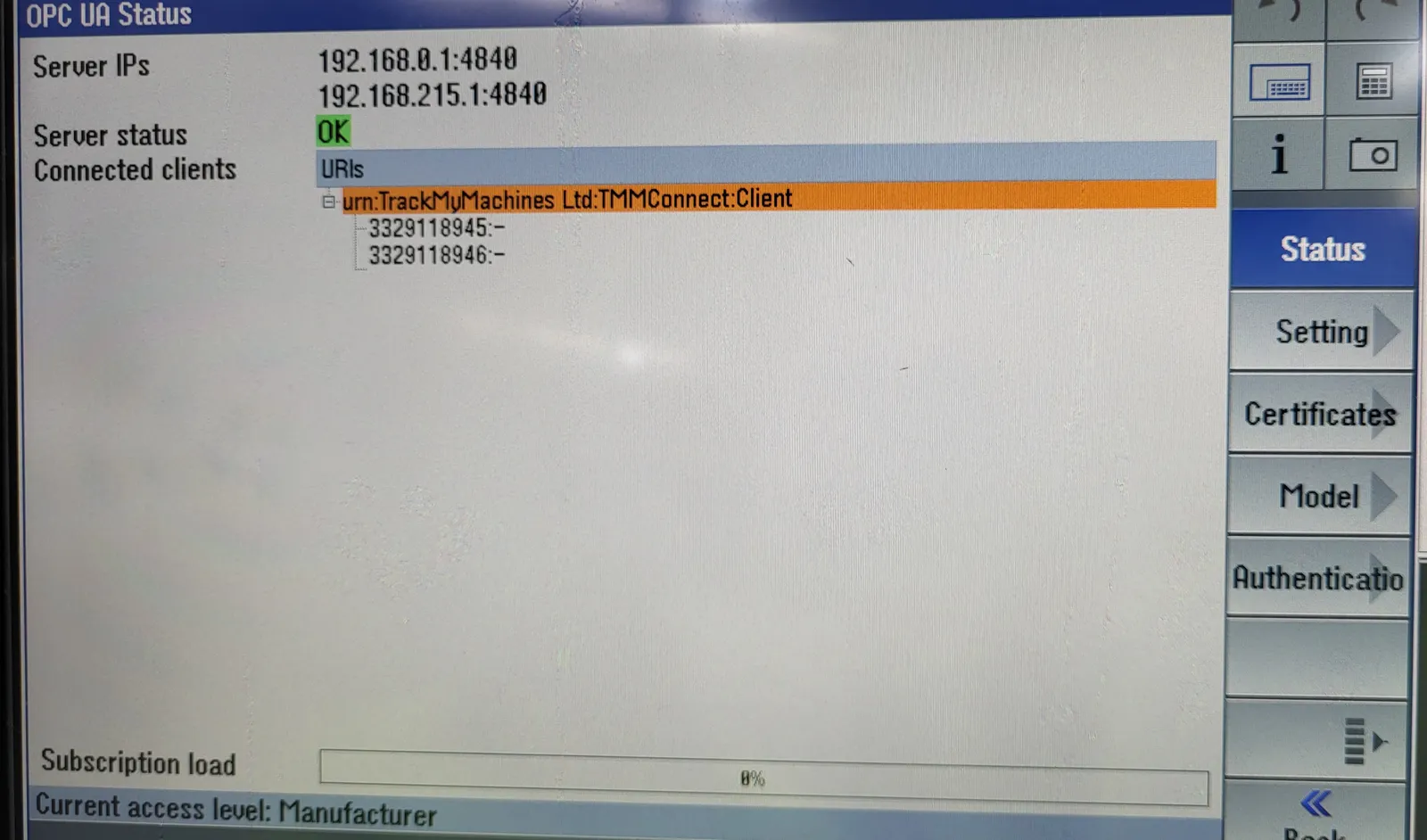
192.168.0.1:4840 and the T-Connect device is listed under Connected clients.Cycle data should start appearing in TrackMyMachines within a few minutes.
Troubleshooting
| Symptom | Likely cause | Fix |
|---|---|---|
| Machine never shows as connected | Wrong IP or port, or the X130 firewall is blocking OPC UA | Check the X130 address (192.168.0.1) and port (4840) match the Machine URL, the T-Connect device is on 192.168.0.2, TCP/4840 is in the X130 firewall exceptions (Step 1), and the cable is in X130, not X127. |
192.168.0.1:4840 missing from Server IPs on the OPC UA Status screen | OPC UA isn't enabled on the company network | Tick Company network in the OPC UA settings (Step 2). |
| No OPC UA softkey on the control | The Access MyMachine / OPC UA option isn't enabled, or you're not at Manufacturer access level | Check the option under Commissioning → Licenses → All options and your access level. |
| Alarm 8084 "test license active" | Access MyMachine / OPC UA is set but not licensed | Buy the licence before the test period ends (see Checking the OPC UA licence). |
| Connection keeps failing straight after setup | Certificate not trusted — the control reports BadSecurityChecksFailed | Trust the T-Connect certificate (Step 6). |
| Still failing after the certificate is trusted | Password mismatch — the control reports BadUserAccessDenied or BadIdentityTokenRejected | Re-enter the OpcUaClient password on the control and check the value with TMM support. |
| Machine shows connected, but no cycle data | Missing read rights — values read back as BadUserAccessDenied | Grant OpcUaClient the state and alarm read rights (Step 3). |
| Connection fails with no certificate ever appearing under rejected | 256-bit encryption isn't enabled — the device can't find a usable endpoint | Tick 256 bit under Message encryption (Step 2). |
| Worked on the bench, stopped once the device was mounted | Weak WiFi inside the cabinet — the cloud link, not the control link, has dropped | Move the T-Connect device outside the cabinet or closer to an access point. |
| Certificate is trusted but still rejected | The control's clock is wrong, or a stale entry from an earlier attempt is still in the rejected list | Check the Operating System Time on the OPC UA Diagnosis screen and correct the control's date and time, then delete the old rejected entries and trust the fresh one on the next retry. |
Need help?
If cycle data doesn't start appearing after a few minutes, work through the troubleshooting table above — the certificate trust step in particular is the one most people miss. Still stuck? Email support@trackmymachines.com.